
Filtering & Search
As your team captures more checks, the dashboard can grow quickly. Crosscheck provides a search box and a row of filter chips at the top of every checks view to help you find the right check fast.
The Filter Bar
Every checks view shares the same toolbar across the top:
- A Search box on the left for matching by URL or check title.
- A row of filter chips (the exact set depends on the view — see below).
- A Newest sort control on the right — click the arrow to flip between newest and oldest first.
- A × Clear All shortcut on the far right that resets every active filter at once. When triggered from inside a specific project view, Clear All also takes you back to the workspace-wide All Checks page.
Filter chips depend on where you are
The set of filter chips changes based on whether you are looking at every check in the workspace or you have drilled into a single project from the sidebar:
| View | Filter chips shown |
|---|---|
| All Checks | Date · Project · Tag · Type |
| Inside a project (selected from the sidebar) | Date · Tag · Type — the Project chip is hidden because the project context is already set by the sidebar |
Removing an active filter
Once a filter is active, the chip shows its selected value in orange next to its label (for example, Tag · hassan). To remove that single filter without touching the others, click the small × on the left of the chip. Use × Clear All on the right of the bar to reset every filter in one click.
Available Filters
| Filter | Description | Options |
|---|---|---|
| Date | Show checks created within a specific time period | Pick a date range from the dropdown |
| Project | Filter by the project a check belongs to (All Checks view only) | Pick from your workspace projects |
| Tag | Show checks carrying a specific workspace tag | Search and pick from existing workspace tags |
| Type | Filter by check type | Screenshot, Recording, Instant Replay |
No Checks Found
If a project or filter combination has no matching checks, the grid is replaced with the No Checks Found empty state. It includes:
- A "We couldn't find any checks matching" message.
- A short prompt: Try adjusting your search or browse all checks below.
- A Search Tips card with quick suggestions — try different keywords, check for typos, use project names or check types, browse by date range or project.
- A Browse All Checks button at the bottom that takes you back to the workspace-wide All Checks view so you can confirm the check exists somewhere in the workspace.
Grid View
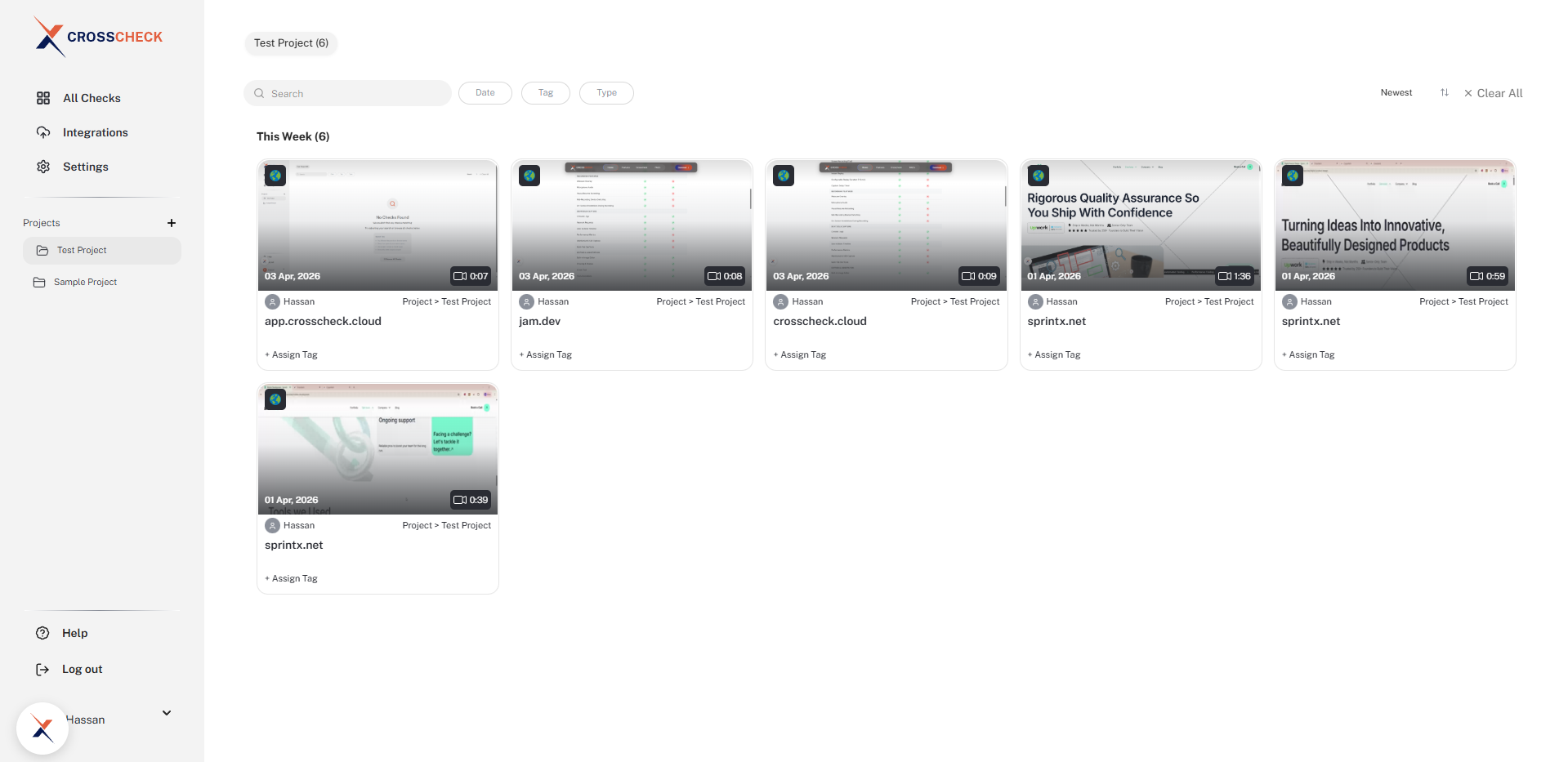
The checks dashboard displays checks as visual cards with thumbnail previews, grouped by date (Today, This Week, and so on). Each card shows the captured page URL, the author, the project, the check date, and any assigned tag.
Sorting
By default, checks are sorted by creation date with the most recent first (the sort label shows Newest). Click the arrow icon next to the label to flip between newest and oldest first.
Loading More Checks
As you scroll through your checks, more results load automatically. This infinite scroll behavior lets you browse through large projects without interruption.
Tips for Efficient Searching
- Tag early and often — applying a tag when you create a check makes it much easier to find later through the Tag filter.
- Use projects to scope — assign checks to projects so you can jump straight into the relevant project from the sidebar instead of filtering across the whole workspace.
- Narrow with date ranges — if you know roughly when a bug was reported, the Date filter avoids endless scrolling.
- Use thumbnails for visual triage — thumbnail previews on check cards let you visually scan for the right check without opening each one.