
Instant Replay
How It Works
Instant Replay uses lightweight session recording technology that runs inside the browser. Rather than capturing pixels as video, it records page changes, user interactions, and visual state. This produces lightweight session data that can be played back as a faithful reproduction of the original session.
Enable Instant Replay for the site you're testing
Instant Replay only runs on sites you have explicitly enabled, so it never records pages you have not opted in to. There are two ways to add a site:
- From the extension popup — Open the site you want to test, click the Crosscheck icon in your toolbar, and toggle Enable Instant Replay for this site. The current site is added to your replay list automatically and Crosscheck starts buffering activity right away.
- From extension settings — Open Settings → Enabled Replay Websites and add the site URL manually. This is useful when you want to pre-configure multiple sites in one place.
From the same settings panel you can also adjust the buffer duration (between 1 and 5 minutes) and enable or disable Instant Replay globally.
Encounter a bug
Continue testing normally — the rolling buffer keeps the most recent 1 to 5 minutes of activity in the background. When you see an issue you want to report, open the Crosscheck extension.
Capture the replay
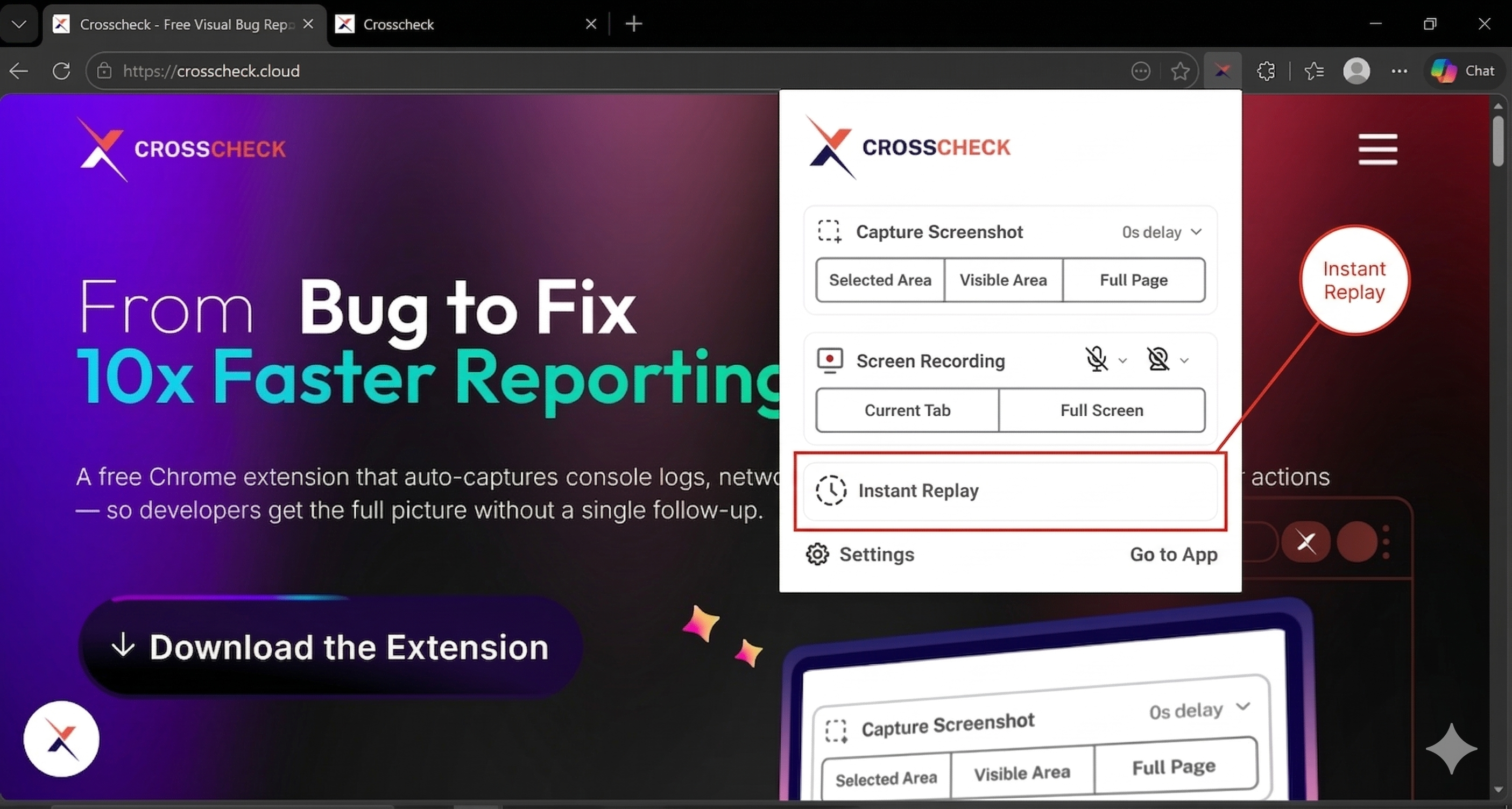
Click Instant Replay in the extension popup. Crosscheck exports the buffered DOM recording as a session replay, along with the matching developer context (console logs, network requests, and the user action timeline from the same time window).
Preview, trim, and create the check
The captured replay opens in a preview window where you can scrub through the session, trim the start and end to isolate the relevant moments, and configure the side panel:
- Set visibility (public or private).
- Assign a project so the check lands in the right place.
- Assign tags for filtering and triage.
- Leave a comment to give reviewers context.
Create and copy link
When everything looks right, click Create and copy link. The check opens in a new tab and is automatically saved to your Crosscheck dashboard at app.crosscheck.cloud — under the project you assigned in the preview side panel, or under All Checks if none was chosen.
If you close the replay preview without creating the check, your check is not lost. The next time you open the extension popup, the pending replay is shown with two options:
- Create Check — Reopens the preview so you can finish trimming and save the check to your dashboard.
- Delete Check — Discards the pending replay permanently.
Why Session Data Instead of Video?
Traditional screen recordings capture raw pixel data, resulting in large video files. Instant Replay takes a fundamentally different approach by recording the structure of the page rather than its pixels.
| Aspect | Instant Replay (Session Data) | Screen Recording (Video) |
|---|---|---|
| File size | Typically 50-200 KB for a 30-second session | Several MB for the same duration |
| Format | Lightweight session data | WebM video (pixel data) |
| Playback | Reconstructed in the browser using the session player | Standard video player |
| Interactivity | Can inspect elements, copy text, resize during playback | Fixed resolution, view-only |
| Capture trigger | Retroactive: captures what already happened | Proactive: must start recording before the bug occurs |
| Performance impact | Minimal: lightweight event listeners | Higher: video encoding in real time |
Privacy and Data Handling
Instant Replay is designed with privacy as a core principle:
- The recording buffer stays in your browser until you choose to save. No data leaves your machine until you explicitly save a replay.
- Password fields are automatically masked in the recorded session data to prevent sensitive information from being captured.
- You can disable Instant Replay at any time from the extension settings. When disabled, no background recording occurs.
When to Use Instant Replay
Instant Replay is best for intermittent or hard-to-reproduce bugs. Since it captures retroactively, you do not need to anticipate when a bug will happen. It is also useful during exploratory testing sessions where you want to stay focused on the application without managing recording controls. For longer, planned recording sessions, use Screen Recording instead.