
Sharing with Team Members
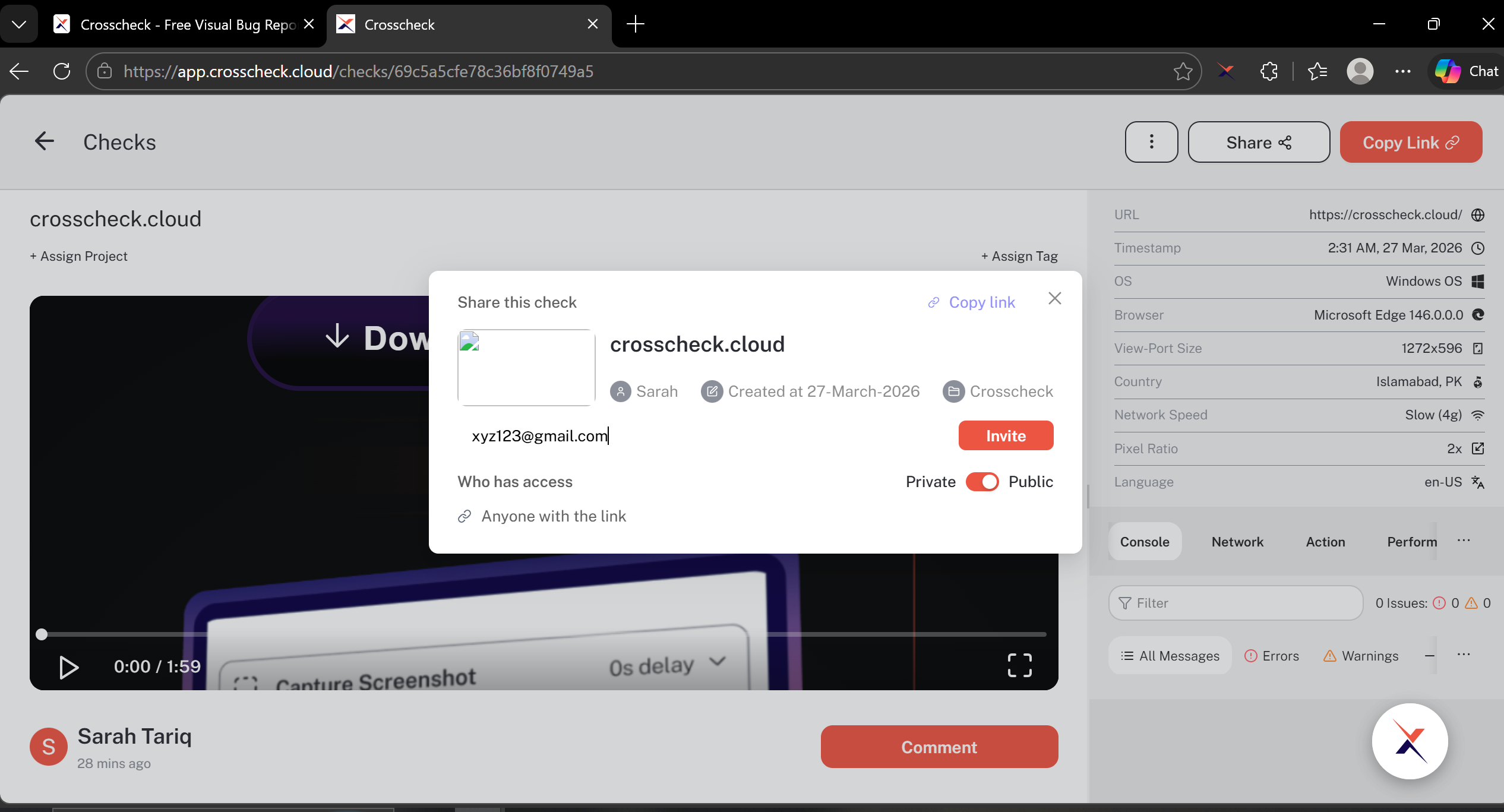
In addition to public links, you can share checks directly with specific team members by inviting them via email. This keeps your checks accessible only to the people who need to see them, without making the link available to anyone.
How to Share with Team Members
Open the check
Click Share
Enter email addresses
[email protected], [email protected]).Send the invitation
Access Within a Workspace
All members of a workspace can view checks that belong to projects they have access to. Sharing is most useful when you need to:
- Share a check with someone who is not yet a member of the workspace.
- Bring specific attention to a check by notifying certain team members directly.
- Share with people in a different workspace who need visibility into a particular issue.
"Shared with Me" Section
All checks that others have shared with you appear in the Shared with Me tab at the top of the checks area. Click this tab to see every check that has been shared with your account, along with a count of shared checks.
From the Shared with Me view you can open any check to see the full check including media, DevTools data, and metadata. Shared checks are distinguished with a shared indicator so you can tell them apart from checks you created yourself.
Managing Shared Access
The check owner can manage who has access at any time through the Share panel. From there you can:
- See the full list of people the check is shared with.
- Remove access for specific users by clicking the remove button next to their name.
- Add new recipients by entering additional email addresses.